> ## Documentation Index
> Fetch the complete documentation index at: https://docs-dev-feat-docs-5551-enterprise-connect.mintlify.site/llms.txt
> Use this file to discover all available pages before exploring further.

> Learn how to configure a progressive profile form using Forms for Actions

# Use Cases: Configure a progressive profile form using Forms

<Card title="Before you start">
  1. Create a [Machine-to-Machine Application](/docs/get-started/auth0-overview/create-applications/machine-to-machine-apps) with the following scopes enabled:

  * `read:users`
  * `update:users`
  * `create:users`
  * `read:users_app_metadata`
  * `update:users_app_metadata`
  * `create:users_app_metadata`

  2. Add a [Vault connection](/docs/customize/forms/vault) using the M2M application credentials.
</Card>

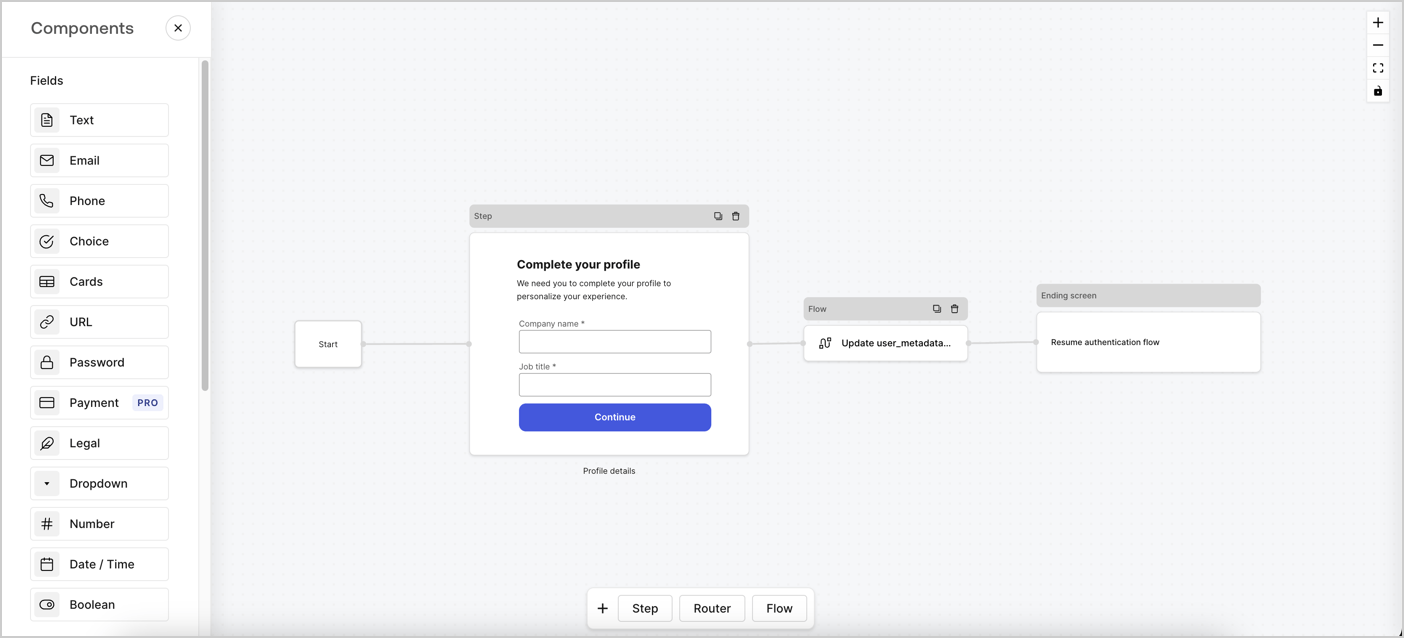
Forms for Actions allows you to create progressive profiling flows to decide when to prompt users to collect missing information, such as company name and job title, and store them as `user_metadata` attributes.
<Frame>
  <img src="https://mintcdn.com/docs-dev-feat-docs-5551-enterprise-connect/MF945714_MS_cx8_/docs/images/cdy7uua7fh8z/xUx9YmnHvnAqL19JvNtNP/60dae88f893d4ebe8e3523421e960596/Progressive-profle-overview.png?fit=max&auto=format&n=MF945714_MS_cx8_&q=85&s=89a8441ef14f65ed3f617f29056942e5" alt="Dashboard > Actions > Forms > Form" data-og-width="1404" width="1404" data-og-height="638" height="638" data-path="docs/images/cdy7uua7fh8z/xUx9YmnHvnAqL19JvNtNP/60dae88f893d4ebe8e3523421e960596/Progressive-profle-overview.png" data-optimize="true" data-opv="3" srcset="https://mintcdn.com/docs-dev-feat-docs-5551-enterprise-connect/MF945714_MS_cx8_/docs/images/cdy7uua7fh8z/xUx9YmnHvnAqL19JvNtNP/60dae88f893d4ebe8e3523421e960596/Progressive-profle-overview.png?w=280&fit=max&auto=format&n=MF945714_MS_cx8_&q=85&s=e0ce3dc6a5d91fa74b077661d9821469 280w, https://mintcdn.com/docs-dev-feat-docs-5551-enterprise-connect/MF945714_MS_cx8_/docs/images/cdy7uua7fh8z/xUx9YmnHvnAqL19JvNtNP/60dae88f893d4ebe8e3523421e960596/Progressive-profle-overview.png?w=560&fit=max&auto=format&n=MF945714_MS_cx8_&q=85&s=b214b07e4b8a9526b4a5a691ee999997 560w, https://mintcdn.com/docs-dev-feat-docs-5551-enterprise-connect/MF945714_MS_cx8_/docs/images/cdy7uua7fh8z/xUx9YmnHvnAqL19JvNtNP/60dae88f893d4ebe8e3523421e960596/Progressive-profle-overview.png?w=840&fit=max&auto=format&n=MF945714_MS_cx8_&q=85&s=28e6cf9cb91d5d2adb614300bcfb7d88 840w, https://mintcdn.com/docs-dev-feat-docs-5551-enterprise-connect/MF945714_MS_cx8_/docs/images/cdy7uua7fh8z/xUx9YmnHvnAqL19JvNtNP/60dae88f893d4ebe8e3523421e960596/Progressive-profle-overview.png?w=1100&fit=max&auto=format&n=MF945714_MS_cx8_&q=85&s=0d0c54b60d6ed6179e2a189a8681ae13 1100w, https://mintcdn.com/docs-dev-feat-docs-5551-enterprise-connect/MF945714_MS_cx8_/docs/images/cdy7uua7fh8z/xUx9YmnHvnAqL19JvNtNP/60dae88f893d4ebe8e3523421e960596/Progressive-profle-overview.png?w=1650&fit=max&auto=format&n=MF945714_MS_cx8_&q=85&s=e4bba1e49a600e564481fba1c06a116e 1650w, https://mintcdn.com/docs-dev-feat-docs-5551-enterprise-connect/MF945714_MS_cx8_/docs/images/cdy7uua7fh8z/xUx9YmnHvnAqL19JvNtNP/60dae88f893d4ebe8e3523421e960596/Progressive-profle-overview.png?w=2500&fit=max&auto=format&n=MF945714_MS_cx8_&q=85&s=b082b0114c65e402ca8ca9d080f82535 2500w" />
</Frame>

The sections below outline how you can create a progressive profile form using nodes and flows, along with steps for adding your form to a [Post Login Action](/docs/customize/actions/explore-triggers/signup-and-login-triggers/login-trigger).

## Create a form from scratch

Follow these steps to create a form to gather information:

1. Open the Form editor by selecting **Auth0 Dashboard > Actions > Forms.**
2. Select **Create Form** > **Start from scratch**.

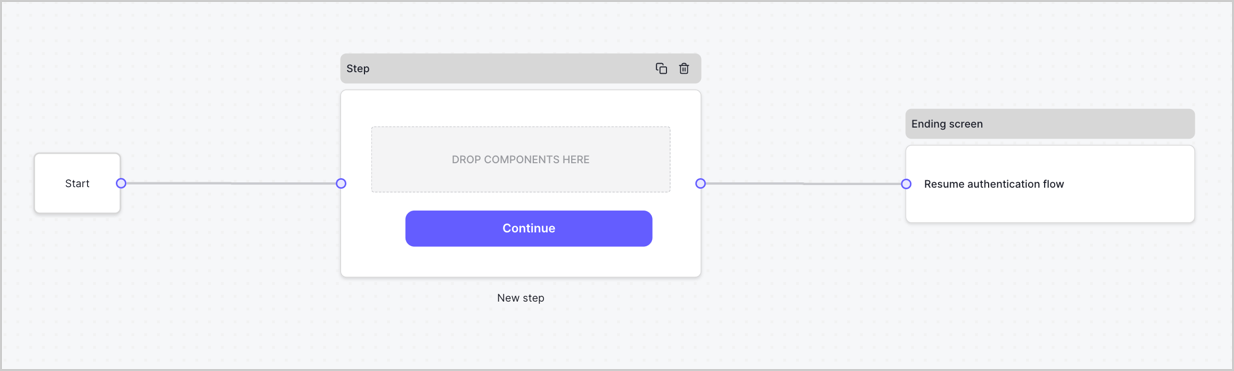
By default, a new form contains a Start node, a Step node, and an Ending screen node.
<Frame>
  <img src="https://mintcdn.com/docs-dev-feat-docs-5551-enterprise-connect/F_KuxmcPTduhDvgC/docs/images/cdy7uua7fh8z/2TZ9jSjgEcARFpULI6hz4R/a4319a1bd482f2ee5cc23100fdb2f42c/New-form-Forms-for-action-use-case.png?fit=max&auto=format&n=F_KuxmcPTduhDvgC&q=85&s=fc8565244e37878c2db745bcf0f73a21" alt="Dashboard > Forms > Use Cases > Form" data-og-width="1234" width="1234" data-og-height="371" height="371" data-path="docs/images/cdy7uua7fh8z/2TZ9jSjgEcARFpULI6hz4R/a4319a1bd482f2ee5cc23100fdb2f42c/New-form-Forms-for-action-use-case.png" data-optimize="true" data-opv="3" srcset="https://mintcdn.com/docs-dev-feat-docs-5551-enterprise-connect/F_KuxmcPTduhDvgC/docs/images/cdy7uua7fh8z/2TZ9jSjgEcARFpULI6hz4R/a4319a1bd482f2ee5cc23100fdb2f42c/New-form-Forms-for-action-use-case.png?w=280&fit=max&auto=format&n=F_KuxmcPTduhDvgC&q=85&s=e91d1eb3ba6335af262f8c52b266fe63 280w, https://mintcdn.com/docs-dev-feat-docs-5551-enterprise-connect/F_KuxmcPTduhDvgC/docs/images/cdy7uua7fh8z/2TZ9jSjgEcARFpULI6hz4R/a4319a1bd482f2ee5cc23100fdb2f42c/New-form-Forms-for-action-use-case.png?w=560&fit=max&auto=format&n=F_KuxmcPTduhDvgC&q=85&s=9737275626937657ed8f0764474ac493 560w, https://mintcdn.com/docs-dev-feat-docs-5551-enterprise-connect/F_KuxmcPTduhDvgC/docs/images/cdy7uua7fh8z/2TZ9jSjgEcARFpULI6hz4R/a4319a1bd482f2ee5cc23100fdb2f42c/New-form-Forms-for-action-use-case.png?w=840&fit=max&auto=format&n=F_KuxmcPTduhDvgC&q=85&s=0434b46194fe16d7203f90bc6af6e77c 840w, https://mintcdn.com/docs-dev-feat-docs-5551-enterprise-connect/F_KuxmcPTduhDvgC/docs/images/cdy7uua7fh8z/2TZ9jSjgEcARFpULI6hz4R/a4319a1bd482f2ee5cc23100fdb2f42c/New-form-Forms-for-action-use-case.png?w=1100&fit=max&auto=format&n=F_KuxmcPTduhDvgC&q=85&s=63bd03060fea4944fafc4dee1de2b2c8 1100w, https://mintcdn.com/docs-dev-feat-docs-5551-enterprise-connect/F_KuxmcPTduhDvgC/docs/images/cdy7uua7fh8z/2TZ9jSjgEcARFpULI6hz4R/a4319a1bd482f2ee5cc23100fdb2f42c/New-form-Forms-for-action-use-case.png?w=1650&fit=max&auto=format&n=F_KuxmcPTduhDvgC&q=85&s=50adc446e085a8e479458d0276a55c0a 1650w, https://mintcdn.com/docs-dev-feat-docs-5551-enterprise-connect/F_KuxmcPTduhDvgC/docs/images/cdy7uua7fh8z/2TZ9jSjgEcARFpULI6hz4R/a4319a1bd482f2ee5cc23100fdb2f42c/New-form-Forms-for-action-use-case.png?w=2500&fit=max&auto=format&n=F_KuxmcPTduhDvgC&q=85&s=e244e2ef1ea71131ff18f410641aab15 2500w" />
</Frame>

### Configure the Step node

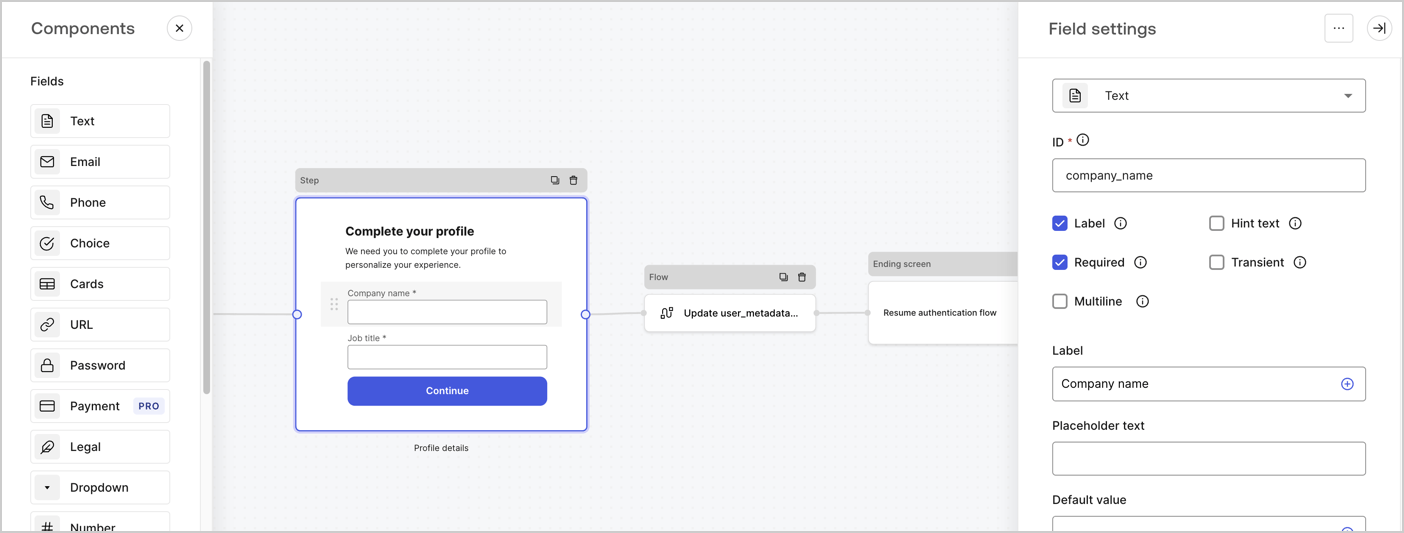
The Step node is the graphical interface visible to users. Add [Fields](/docs/customize/forms/nodes-and-components) to the Step node to collect the user's company name and job title values by following these steps:

1. Drag a **Rich text** field from the **Components menu** into the **Step** node.

   * **Rich text**: Enter a custom message.

     * **Example**: `Complete your profile! We need you to complete your profile to personalize your experience.`
   * Select **Save**.
2. Drag a **Text** field into the **Step** node.

   * **ID**: Enter `company_name`.
   * **Label**: Enable the checkbox.
   * **Label**: Enter `Company name`.
   * **Required**: Enable the checkbox.
   * Select **Save**.
3. Drag a **Text** field into the **Step** node.

   1. **ID**: Enter `job_title`.
   2. **Label**: Enter `Job title`.
   3. **Label**: Enable the checkbox.
   4. **Required**: Enable the checkbox.
   5. Select **Save**.
4. Select **Publish** to save.
<Frame>
  <img src="https://mintcdn.com/docs-dev-feat-docs-5551-enterprise-connect/n8I2ndiyWFrAh78u/docs/images/cdy7uua7fh8z/6H1lRzwKyYioQyQJ9MtIoM/aa248e92fc028a68a5b92ff361a11644/progressive-profile-step.png?fit=max&auto=format&n=n8I2ndiyWFrAh78u&q=85&s=2bd3b76d4d9898eeeb3bc52b9725b184" alt="Dashboard > Actions > Forms > Form > Step node" data-og-width="1404" width="1404" data-og-height="533" height="533" data-path="docs/images/cdy7uua7fh8z/6H1lRzwKyYioQyQJ9MtIoM/aa248e92fc028a68a5b92ff361a11644/progressive-profile-step.png" data-optimize="true" data-opv="3" srcset="https://mintcdn.com/docs-dev-feat-docs-5551-enterprise-connect/n8I2ndiyWFrAh78u/docs/images/cdy7uua7fh8z/6H1lRzwKyYioQyQJ9MtIoM/aa248e92fc028a68a5b92ff361a11644/progressive-profile-step.png?w=280&fit=max&auto=format&n=n8I2ndiyWFrAh78u&q=85&s=6fddedb00ee9fce1365c38930f6c6d28 280w, https://mintcdn.com/docs-dev-feat-docs-5551-enterprise-connect/n8I2ndiyWFrAh78u/docs/images/cdy7uua7fh8z/6H1lRzwKyYioQyQJ9MtIoM/aa248e92fc028a68a5b92ff361a11644/progressive-profile-step.png?w=560&fit=max&auto=format&n=n8I2ndiyWFrAh78u&q=85&s=40707d01a640ef768e8c4fd3a6dafe4d 560w, https://mintcdn.com/docs-dev-feat-docs-5551-enterprise-connect/n8I2ndiyWFrAh78u/docs/images/cdy7uua7fh8z/6H1lRzwKyYioQyQJ9MtIoM/aa248e92fc028a68a5b92ff361a11644/progressive-profile-step.png?w=840&fit=max&auto=format&n=n8I2ndiyWFrAh78u&q=85&s=03e1484920dbd3ce7e3ce8504c6f65c0 840w, https://mintcdn.com/docs-dev-feat-docs-5551-enterprise-connect/n8I2ndiyWFrAh78u/docs/images/cdy7uua7fh8z/6H1lRzwKyYioQyQJ9MtIoM/aa248e92fc028a68a5b92ff361a11644/progressive-profile-step.png?w=1100&fit=max&auto=format&n=n8I2ndiyWFrAh78u&q=85&s=c450cb19ea79055c1b10caa061665cf0 1100w, https://mintcdn.com/docs-dev-feat-docs-5551-enterprise-connect/n8I2ndiyWFrAh78u/docs/images/cdy7uua7fh8z/6H1lRzwKyYioQyQJ9MtIoM/aa248e92fc028a68a5b92ff361a11644/progressive-profile-step.png?w=1650&fit=max&auto=format&n=n8I2ndiyWFrAh78u&q=85&s=71ba8580d8c07206005922d36b22174f 1650w, https://mintcdn.com/docs-dev-feat-docs-5551-enterprise-connect/n8I2ndiyWFrAh78u/docs/images/cdy7uua7fh8z/6H1lRzwKyYioQyQJ9MtIoM/aa248e92fc028a68a5b92ff361a11644/progressive-profile-step.png?w=2500&fit=max&auto=format&n=n8I2ndiyWFrAh78u&q=85&s=2f033dddfce13ddf1e548dd3559348a6 2500w" />
</Frame>

### Configure the flow node

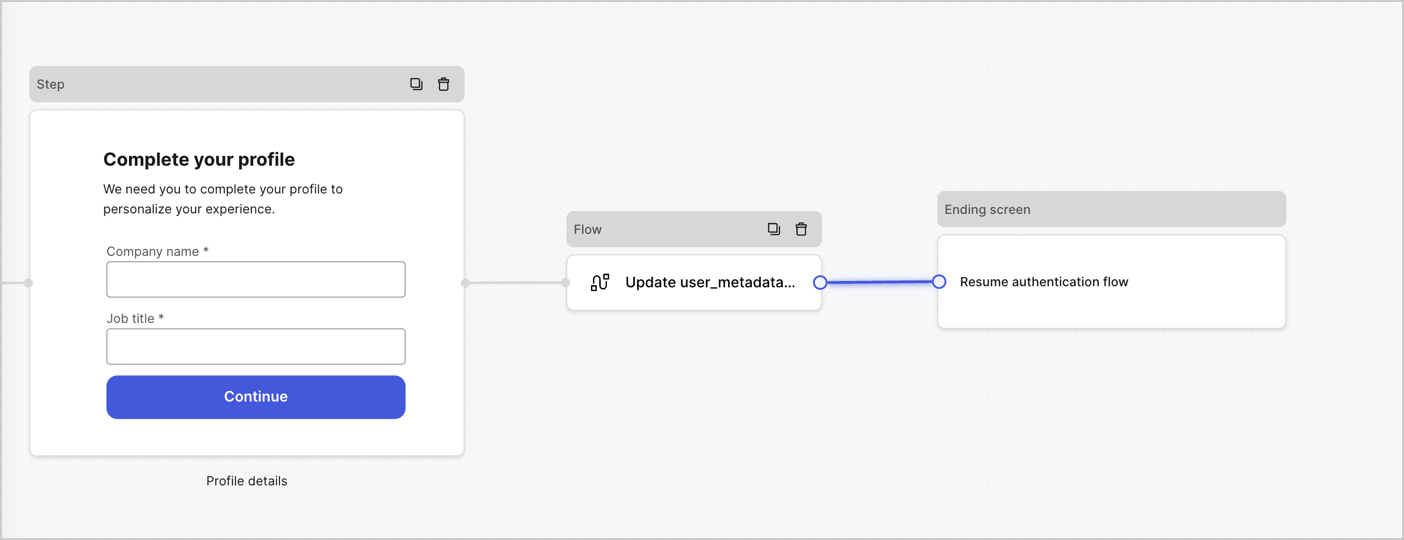
Add a **Flow** node after the **Step** node to update the `user_metadata` and resume the authentication flow by following these steps:

1. Select **Flow** from the bottom of the Form editor.
2. Remove the existing link between the **Step** and **Ending Screen** nodes.
3. Select the new **Flow** > **Click to add a flow** > **Create a new flow.**

   * Enter `Update user_metadata` in the **Name** field.
   * Select **Create**.
   * Select **Save**.
4. Link the **Flow** node to the **Step** and **Ending Screen** nodes as pictured below.
5. Select **Publish** to save.
<Frame>
  <img src="https://mintcdn.com/docs-dev-feat-docs-5551-enterprise-connect/KATJ0wcqYzttE2dS/docs/images/cdy7uua7fh8z/5C91DaWn4LGtJT9BF87ssu/095171d0c452a287c44bfde12fd6d13f/link-nodes.png?fit=max&auto=format&n=KATJ0wcqYzttE2dS&q=85&s=602fdafb69b8e93227a3c04c1a712dbb" alt="Dashboard > Actions > Forms > Form" data-og-width="1404" width="1404" data-og-height="540" height="540" data-path="docs/images/cdy7uua7fh8z/5C91DaWn4LGtJT9BF87ssu/095171d0c452a287c44bfde12fd6d13f/link-nodes.png" data-optimize="true" data-opv="3" srcset="https://mintcdn.com/docs-dev-feat-docs-5551-enterprise-connect/KATJ0wcqYzttE2dS/docs/images/cdy7uua7fh8z/5C91DaWn4LGtJT9BF87ssu/095171d0c452a287c44bfde12fd6d13f/link-nodes.png?w=280&fit=max&auto=format&n=KATJ0wcqYzttE2dS&q=85&s=5ffd9e9cb36dd6b541a295ae9bfee55f 280w, https://mintcdn.com/docs-dev-feat-docs-5551-enterprise-connect/KATJ0wcqYzttE2dS/docs/images/cdy7uua7fh8z/5C91DaWn4LGtJT9BF87ssu/095171d0c452a287c44bfde12fd6d13f/link-nodes.png?w=560&fit=max&auto=format&n=KATJ0wcqYzttE2dS&q=85&s=ba923cbfd0b3a2f43067eb29723abd4f 560w, https://mintcdn.com/docs-dev-feat-docs-5551-enterprise-connect/KATJ0wcqYzttE2dS/docs/images/cdy7uua7fh8z/5C91DaWn4LGtJT9BF87ssu/095171d0c452a287c44bfde12fd6d13f/link-nodes.png?w=840&fit=max&auto=format&n=KATJ0wcqYzttE2dS&q=85&s=fe587f04ceb8944e58db5c3d8c739d25 840w, https://mintcdn.com/docs-dev-feat-docs-5551-enterprise-connect/KATJ0wcqYzttE2dS/docs/images/cdy7uua7fh8z/5C91DaWn4LGtJT9BF87ssu/095171d0c452a287c44bfde12fd6d13f/link-nodes.png?w=1100&fit=max&auto=format&n=KATJ0wcqYzttE2dS&q=85&s=940fe8b9afccb3a4669faaf9399ba11d 1100w, https://mintcdn.com/docs-dev-feat-docs-5551-enterprise-connect/KATJ0wcqYzttE2dS/docs/images/cdy7uua7fh8z/5C91DaWn4LGtJT9BF87ssu/095171d0c452a287c44bfde12fd6d13f/link-nodes.png?w=1650&fit=max&auto=format&n=KATJ0wcqYzttE2dS&q=85&s=170309a73c4f4f115935dd1a4e9c43e3 1650w, https://mintcdn.com/docs-dev-feat-docs-5551-enterprise-connect/KATJ0wcqYzttE2dS/docs/images/cdy7uua7fh8z/5C91DaWn4LGtJT9BF87ssu/095171d0c452a287c44bfde12fd6d13f/link-nodes.png?w=2500&fit=max&auto=format&n=KATJ0wcqYzttE2dS&q=85&s=37a69b32a115ffa45278abe203c84b3a 2500w" />
</Frame>

Add an Auth0 Update user action to the flow by following these steps:

1. Select the **Update user\_metadata** flow, then select the **Edit Flow** to open the Flow editor in a new tab.
2. Below the **Start** action, select the **+** icon to add an **Update user** action. Complete the fields below, then select **Save** to continue.

   * **Connection**: Select from the dropdown the Vault connection to your M2M application.

   * **User ID**: Enter `{{context.user.user_id}}`.

   * **Body**: Copy and paste the following code to update the user\_metadata with `job_title` and `company_name` properties.

     ```json lines theme={null}
     {
        "user_metadata": {
           "job_title": "{{fields.job_title}}",
           "company_name": "{{fields.company_name}}"
        }
     }
     ```

   * Select **Save**.
3. Select **Publish** to save.

<Frame>
  <img src="https://mintcdn.com/docs-dev-feat-docs-5551-enterprise-connect/4o2RdRtlv6vvrz-4/docs/images/cdy7uua7fh8z/65Jx4W5oIZJyyvA8z4HqIx/0661b1a8ca6361c54fc4fef07ba59f0b/update-user.png?fit=max&auto=format&n=4o2RdRtlv6vvrz-4&q=85&s=0a105ebf10db7477fdc90f8dc5cbfa37" alt="Dashboard > Actions > Forms > Flows" data-og-width="1404" width="1404" data-og-height="244" height="244" data-path="docs/images/cdy7uua7fh8z/65Jx4W5oIZJyyvA8z4HqIx/0661b1a8ca6361c54fc4fef07ba59f0b/update-user.png" data-optimize="true" data-opv="3" srcset="https://mintcdn.com/docs-dev-feat-docs-5551-enterprise-connect/4o2RdRtlv6vvrz-4/docs/images/cdy7uua7fh8z/65Jx4W5oIZJyyvA8z4HqIx/0661b1a8ca6361c54fc4fef07ba59f0b/update-user.png?w=280&fit=max&auto=format&n=4o2RdRtlv6vvrz-4&q=85&s=a78e5d14dade7727f8b0049b586a2d86 280w, https://mintcdn.com/docs-dev-feat-docs-5551-enterprise-connect/4o2RdRtlv6vvrz-4/docs/images/cdy7uua7fh8z/65Jx4W5oIZJyyvA8z4HqIx/0661b1a8ca6361c54fc4fef07ba59f0b/update-user.png?w=560&fit=max&auto=format&n=4o2RdRtlv6vvrz-4&q=85&s=ed1413b7606fb3ce06fc4cb40fd1789c 560w, https://mintcdn.com/docs-dev-feat-docs-5551-enterprise-connect/4o2RdRtlv6vvrz-4/docs/images/cdy7uua7fh8z/65Jx4W5oIZJyyvA8z4HqIx/0661b1a8ca6361c54fc4fef07ba59f0b/update-user.png?w=840&fit=max&auto=format&n=4o2RdRtlv6vvrz-4&q=85&s=399dbfdeec6519152e5290ec776feb36 840w, https://mintcdn.com/docs-dev-feat-docs-5551-enterprise-connect/4o2RdRtlv6vvrz-4/docs/images/cdy7uua7fh8z/65Jx4W5oIZJyyvA8z4HqIx/0661b1a8ca6361c54fc4fef07ba59f0b/update-user.png?w=1100&fit=max&auto=format&n=4o2RdRtlv6vvrz-4&q=85&s=13b9c0a0475f98d4e6485c6063c30823 1100w, https://mintcdn.com/docs-dev-feat-docs-5551-enterprise-connect/4o2RdRtlv6vvrz-4/docs/images/cdy7uua7fh8z/65Jx4W5oIZJyyvA8z4HqIx/0661b1a8ca6361c54fc4fef07ba59f0b/update-user.png?w=1650&fit=max&auto=format&n=4o2RdRtlv6vvrz-4&q=85&s=b0e584d316c4a8930ae88996d6e7a189 1650w, https://mintcdn.com/docs-dev-feat-docs-5551-enterprise-connect/4o2RdRtlv6vvrz-4/docs/images/cdy7uua7fh8z/65Jx4W5oIZJyyvA8z4HqIx/0661b1a8ca6361c54fc4fef07ba59f0b/update-user.png?w=2500&fit=max&auto=format&n=4o2RdRtlv6vvrz-4&q=85&s=b667bbaf9e617855652cb7d6eb113230 2500w" />
</Frame>

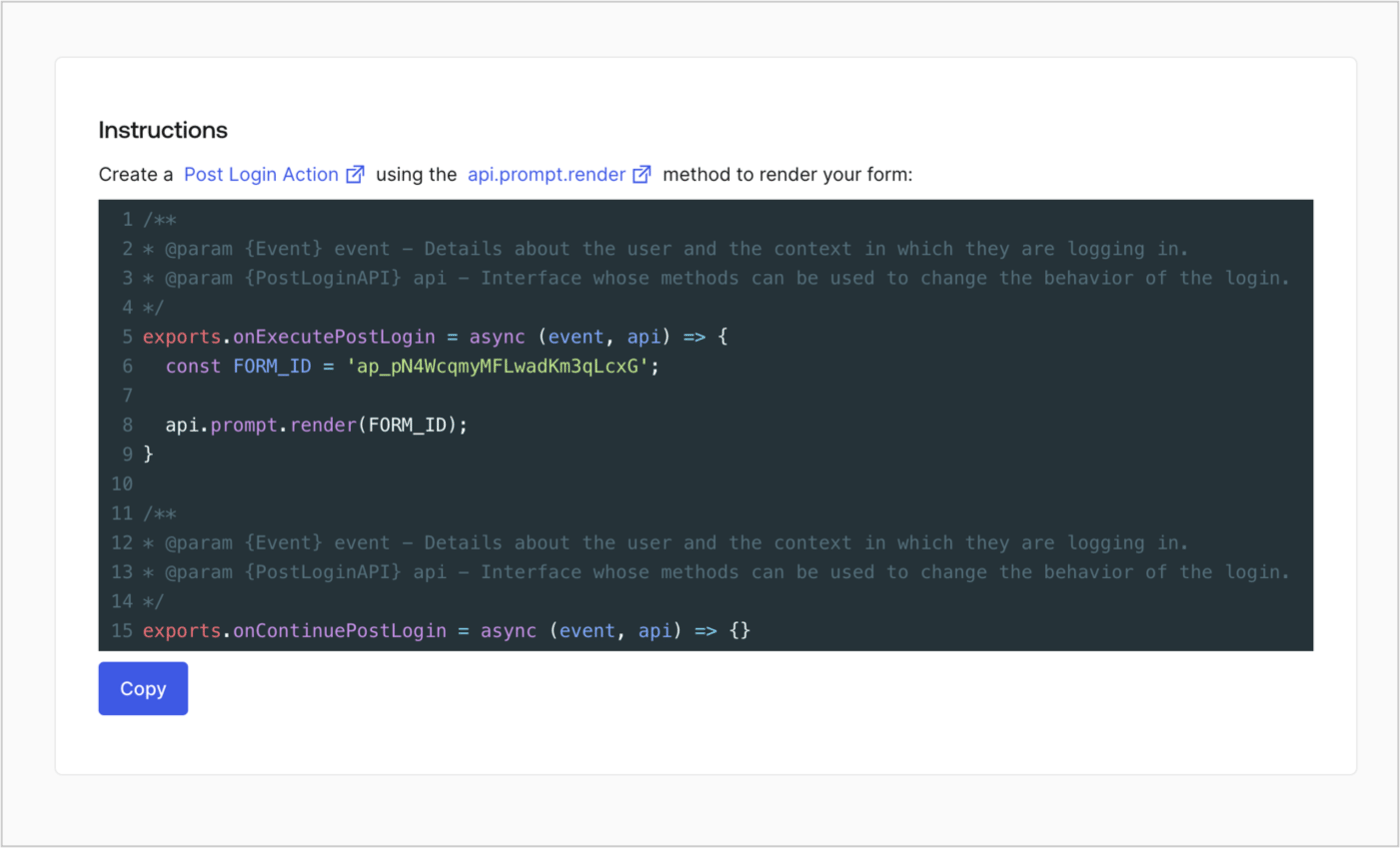
### Retrieve the form render code

Retrieve the form render code to visually render the form with a custom Post Login Action by following these steps:

* From the Form editor, select **`<> Render`**.
* Select **Copy**.
<Frame>
  <img src="https://mintcdn.com/docs-dev-feat-docs-5551-enterprise-connect/TnSPsshfbOiggIxs/docs/images/cdy7uua7fh8z/2EIUzc539sq9lwoTKbjoJv/496a864c0fc44a782c9cadca119dbfb0/embed.png?fit=max&auto=format&n=TnSPsshfbOiggIxs&q=85&s=2d9b4cd70dd633c3ffb9765a52f07856" alt="Dashboard > Actions > Forms > Form > Embed" data-og-width="1400" width="1400" data-og-height="848" height="848" data-path="docs/images/cdy7uua7fh8z/2EIUzc539sq9lwoTKbjoJv/496a864c0fc44a782c9cadca119dbfb0/embed.png" data-optimize="true" data-opv="3" srcset="https://mintcdn.com/docs-dev-feat-docs-5551-enterprise-connect/TnSPsshfbOiggIxs/docs/images/cdy7uua7fh8z/2EIUzc539sq9lwoTKbjoJv/496a864c0fc44a782c9cadca119dbfb0/embed.png?w=280&fit=max&auto=format&n=TnSPsshfbOiggIxs&q=85&s=9184fd78e9d8b87d6322890f1b9e74d1 280w, https://mintcdn.com/docs-dev-feat-docs-5551-enterprise-connect/TnSPsshfbOiggIxs/docs/images/cdy7uua7fh8z/2EIUzc539sq9lwoTKbjoJv/496a864c0fc44a782c9cadca119dbfb0/embed.png?w=560&fit=max&auto=format&n=TnSPsshfbOiggIxs&q=85&s=3d8448cf3172e87b43e25104e5ac967a 560w, https://mintcdn.com/docs-dev-feat-docs-5551-enterprise-connect/TnSPsshfbOiggIxs/docs/images/cdy7uua7fh8z/2EIUzc539sq9lwoTKbjoJv/496a864c0fc44a782c9cadca119dbfb0/embed.png?w=840&fit=max&auto=format&n=TnSPsshfbOiggIxs&q=85&s=29bdffb13c6d3482c18328bf5772e02c 840w, https://mintcdn.com/docs-dev-feat-docs-5551-enterprise-connect/TnSPsshfbOiggIxs/docs/images/cdy7uua7fh8z/2EIUzc539sq9lwoTKbjoJv/496a864c0fc44a782c9cadca119dbfb0/embed.png?w=1100&fit=max&auto=format&n=TnSPsshfbOiggIxs&q=85&s=7f4658e97b12ec851587e68fde6522bf 1100w, https://mintcdn.com/docs-dev-feat-docs-5551-enterprise-connect/TnSPsshfbOiggIxs/docs/images/cdy7uua7fh8z/2EIUzc539sq9lwoTKbjoJv/496a864c0fc44a782c9cadca119dbfb0/embed.png?w=1650&fit=max&auto=format&n=TnSPsshfbOiggIxs&q=85&s=4b9b33c8cbd57013831c5e025ccdaa60 1650w, https://mintcdn.com/docs-dev-feat-docs-5551-enterprise-connect/TnSPsshfbOiggIxs/docs/images/cdy7uua7fh8z/2EIUzc539sq9lwoTKbjoJv/496a864c0fc44a782c9cadca119dbfb0/embed.png?w=2500&fit=max&auto=format&n=TnSPsshfbOiggIxs&q=85&s=309a3047845e113ed28b4e4be4caa92f 2500w" />
</Frame>

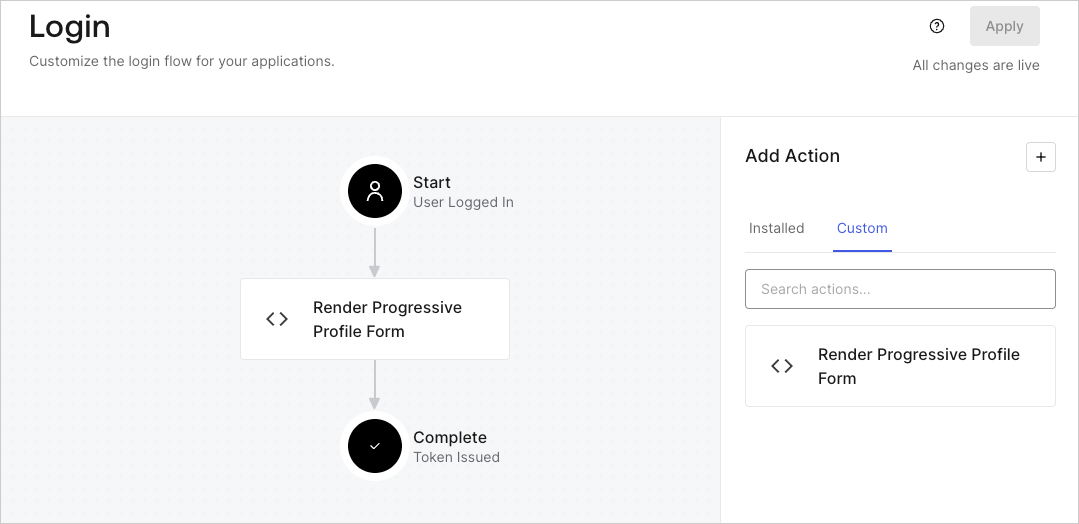
## Create a Post Login Action

Create a post-login Action to render your form by following these steps:

1. Navigate to **Auth0 Dashboard > Actions > Flows > Login.**
2. Select the **+** icon and select **Build from scratch**:

   * **Name**: Enter `Render Progressive Profile Form`.
   * **Trigger**: Select `Login / Post Login`.
   * **Runtime**: Select the recommended version.
3. Select **Create**.

To configure the post-login Action:

1. Delete the existing code from the Code editor.
2. Paste the form embed code into the Code editor.
3. Edit the code to define the conditional logic that will render the form.

   ```javascript lines theme={null}
   /**
   * @param {Event} event - Details about the user and the context in which they are logging in.
   * @param {PostLoginAPI} api - Interface whose methods can be used to change the behavior of the login.
   */
   exports.onExecutePostLogin = async (event, api) => {
     const FORM_ID = 'REPLACE_WITH_YOUR_FORM_ID';

     if (
       event.stats.logins_count > 2 &&
       !event.user.user_metadata.company_name &&
       !event.user.user_metadata.job_title
     ) {
       api.prompt.render(FORM_ID);
     }
   }

   exports.onContinuePostLogin = async (event, api) => { }
   ```

   <Callout icon="file-lines" color="#0EA5E9" iconType="regular">
     The example code above will render the form when a user has a login count > 2 and is missing the user metadata company\_name and job\_title properties.
   </Callout>
4. Select **Deploy.**
5. Drag and Drop the **Render Progressive Profile Form** Action to the **Login** flow.
   <Frame>
     <img src="https://mintcdn.com/docs-dev-feat-docs-5551-enterprise-connect/fp3ONQACRoyB0-7R/docs/images/cdy7uua7fh8z/1QjjZdpTqTxx012UDN4xk9/99fba5ef4068a5688f1762eea7f42976/renderprogessiveprofile.png?fit=max&auto=format&n=fp3ONQACRoyB0-7R&q=85&s=43cfc54b967e97556cf2620865c85592" alt="Dashboard > Forms > Use Cases Progressive Profile Login Action" data-og-width="1079" width="1079" data-og-height="524" height="524" data-path="docs/images/cdy7uua7fh8z/1QjjZdpTqTxx012UDN4xk9/99fba5ef4068a5688f1762eea7f42976/renderprogessiveprofile.png" data-optimize="true" data-opv="3" srcset="https://mintcdn.com/docs-dev-feat-docs-5551-enterprise-connect/fp3ONQACRoyB0-7R/docs/images/cdy7uua7fh8z/1QjjZdpTqTxx012UDN4xk9/99fba5ef4068a5688f1762eea7f42976/renderprogessiveprofile.png?w=280&fit=max&auto=format&n=fp3ONQACRoyB0-7R&q=85&s=307209f1b0580a59199d6f46e5edc537 280w, https://mintcdn.com/docs-dev-feat-docs-5551-enterprise-connect/fp3ONQACRoyB0-7R/docs/images/cdy7uua7fh8z/1QjjZdpTqTxx012UDN4xk9/99fba5ef4068a5688f1762eea7f42976/renderprogessiveprofile.png?w=560&fit=max&auto=format&n=fp3ONQACRoyB0-7R&q=85&s=65a50f70de3da5d7d709336dc9137a34 560w, https://mintcdn.com/docs-dev-feat-docs-5551-enterprise-connect/fp3ONQACRoyB0-7R/docs/images/cdy7uua7fh8z/1QjjZdpTqTxx012UDN4xk9/99fba5ef4068a5688f1762eea7f42976/renderprogessiveprofile.png?w=840&fit=max&auto=format&n=fp3ONQACRoyB0-7R&q=85&s=d1e1f988450d69f7709a2bc561526617 840w, https://mintcdn.com/docs-dev-feat-docs-5551-enterprise-connect/fp3ONQACRoyB0-7R/docs/images/cdy7uua7fh8z/1QjjZdpTqTxx012UDN4xk9/99fba5ef4068a5688f1762eea7f42976/renderprogessiveprofile.png?w=1100&fit=max&auto=format&n=fp3ONQACRoyB0-7R&q=85&s=93b887ddd9c3de0ad8d373597ae5a5b3 1100w, https://mintcdn.com/docs-dev-feat-docs-5551-enterprise-connect/fp3ONQACRoyB0-7R/docs/images/cdy7uua7fh8z/1QjjZdpTqTxx012UDN4xk9/99fba5ef4068a5688f1762eea7f42976/renderprogessiveprofile.png?w=1650&fit=max&auto=format&n=fp3ONQACRoyB0-7R&q=85&s=dea49f6674db90f9c71720c8885f2677 1650w, https://mintcdn.com/docs-dev-feat-docs-5551-enterprise-connect/fp3ONQACRoyB0-7R/docs/images/cdy7uua7fh8z/1QjjZdpTqTxx012UDN4xk9/99fba5ef4068a5688f1762eea7f42976/renderprogessiveprofile.png?w=2500&fit=max&auto=format&n=fp3ONQACRoyB0-7R&q=85&s=b41c437c0bd760c2389bc21807bc9d6c 2500w" />
   </Frame>
6. Select **Apply**.

### Test implementation

Test the implementation by following these steps:

1. Log in with an existing user whose login count is greater than 2 and their `user_metadata` attributes `company_name` and `job_title` have no values.
2. The post-login action in the Login flow will render the form and prompt for the information.
3. Select **Auth0 Dashboard > User Management > Users,** locate the user and verify that the `user_metadata` attributes `company_name` and `job_title` contain information.
