> ## Documentation Index
> Fetch the complete documentation index at: https://docs-dev-feat-docs-5551-enterprise-connect.mintlify.site/llms.txt
> Use this file to discover all available pages before exploring further.

> Learn how to configure an update policy form using Forms for Actions for users to review and accept new terms of service or consent updates.

# Use Cases: Configure an update policy form using Forms

<Card title="Before you start">
  1. Create a [Machine-to-Machine Application](/docs/get-started/auth0-overview/create-applications/machine-to-machine-apps) with the following scopes enabled:

  * `read:users`
  * `update:users`
  * `create:users`
  * `read:users_app_metadata`
  * `update:users_app_metadata`
  * `create:users_app_metadata`

  2. Add a [Vault connection](/docs/customize/forms/vault) using the M2M application credentials.
</Card>

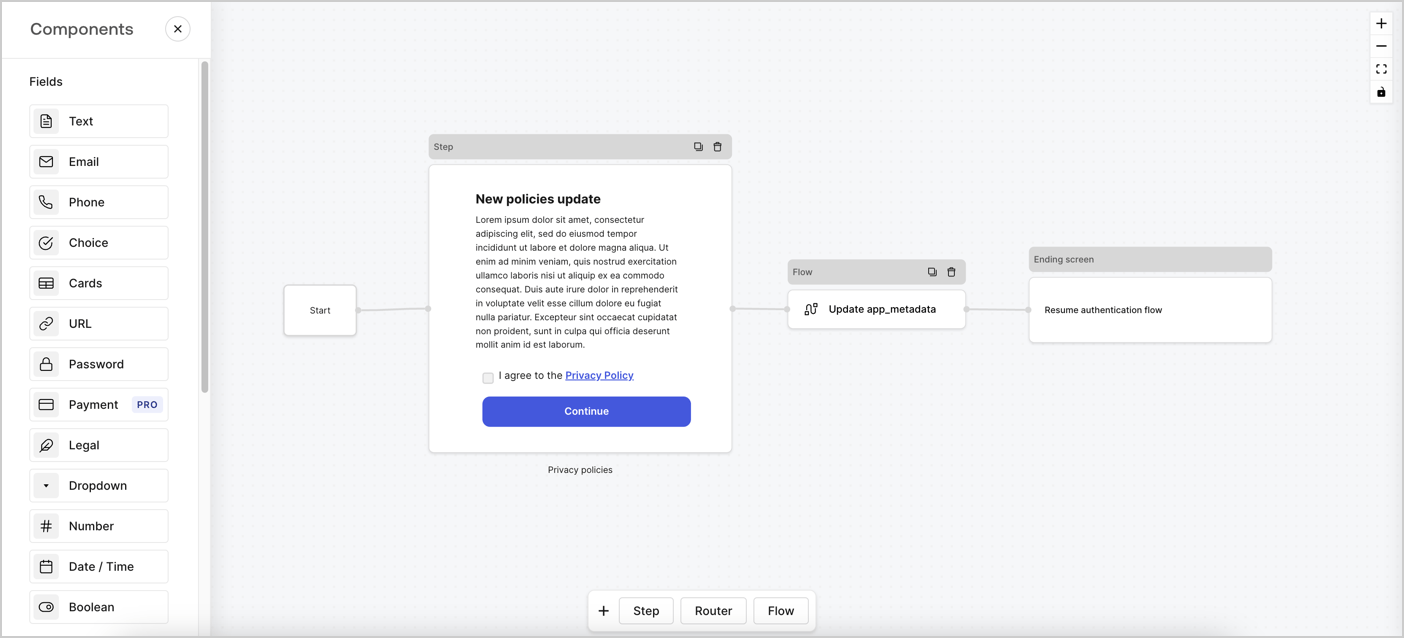
Forms for Actions allows you to create custom privacy policies flows and store the consent under the `app_metadata` object.
<Frame>
  <img src="https://mintcdn.com/docs-dev-feat-docs-5551-enterprise-connect/n8I2ndiyWFrAh78u/docs/images/cdy7uua7fh8z/6i68dMvHDTijfRmSgN1x8Q/ad900e7d4c0fb34645921435472b8684/privavy-policy-form.png?fit=max&auto=format&n=n8I2ndiyWFrAh78u&q=85&s=421bb0d00c5c3924104e52b820bfe0aa" alt="Dashboard > Actions > Forms > Privacy policy use case" data-og-width="1404" width="1404" data-og-height="638" height="638" data-path="docs/images/cdy7uua7fh8z/6i68dMvHDTijfRmSgN1x8Q/ad900e7d4c0fb34645921435472b8684/privavy-policy-form.png" data-optimize="true" data-opv="3" srcset="https://mintcdn.com/docs-dev-feat-docs-5551-enterprise-connect/n8I2ndiyWFrAh78u/docs/images/cdy7uua7fh8z/6i68dMvHDTijfRmSgN1x8Q/ad900e7d4c0fb34645921435472b8684/privavy-policy-form.png?w=280&fit=max&auto=format&n=n8I2ndiyWFrAh78u&q=85&s=ca5cb9f3f35764f1b860e71c1c5208f7 280w, https://mintcdn.com/docs-dev-feat-docs-5551-enterprise-connect/n8I2ndiyWFrAh78u/docs/images/cdy7uua7fh8z/6i68dMvHDTijfRmSgN1x8Q/ad900e7d4c0fb34645921435472b8684/privavy-policy-form.png?w=560&fit=max&auto=format&n=n8I2ndiyWFrAh78u&q=85&s=ab6e16cacc3cfb30fd968ba15ede498c 560w, https://mintcdn.com/docs-dev-feat-docs-5551-enterprise-connect/n8I2ndiyWFrAh78u/docs/images/cdy7uua7fh8z/6i68dMvHDTijfRmSgN1x8Q/ad900e7d4c0fb34645921435472b8684/privavy-policy-form.png?w=840&fit=max&auto=format&n=n8I2ndiyWFrAh78u&q=85&s=7588dac5aafe9a51b1f9d4bfbb405327 840w, https://mintcdn.com/docs-dev-feat-docs-5551-enterprise-connect/n8I2ndiyWFrAh78u/docs/images/cdy7uua7fh8z/6i68dMvHDTijfRmSgN1x8Q/ad900e7d4c0fb34645921435472b8684/privavy-policy-form.png?w=1100&fit=max&auto=format&n=n8I2ndiyWFrAh78u&q=85&s=7b45d33f6dc6b1249c90a783e4441344 1100w, https://mintcdn.com/docs-dev-feat-docs-5551-enterprise-connect/n8I2ndiyWFrAh78u/docs/images/cdy7uua7fh8z/6i68dMvHDTijfRmSgN1x8Q/ad900e7d4c0fb34645921435472b8684/privavy-policy-form.png?w=1650&fit=max&auto=format&n=n8I2ndiyWFrAh78u&q=85&s=a6cc7df96adcd0f3e1a1ec8fd7a03451 1650w, https://mintcdn.com/docs-dev-feat-docs-5551-enterprise-connect/n8I2ndiyWFrAh78u/docs/images/cdy7uua7fh8z/6i68dMvHDTijfRmSgN1x8Q/ad900e7d4c0fb34645921435472b8684/privavy-policy-form.png?w=2500&fit=max&auto=format&n=n8I2ndiyWFrAh78u&q=85&s=da3c59bf9ec021f42b338f6b206df3c5 2500w" />
</Frame>

The sections below outline how you can create an Update Policy form using nodes and flows, along with steps for adding your form to a [Post Login](/docs/customize/actions/explore-triggers/signup-and-login-triggers/login-trigger) Action.

## Create a form from scratch

Follow these steps to create a form to gather information:

1. Open the Form editor by selecting **Auth0 Dashboard > Actions > Forms.**
2. Select **Create Form** > **Start from scratch**.

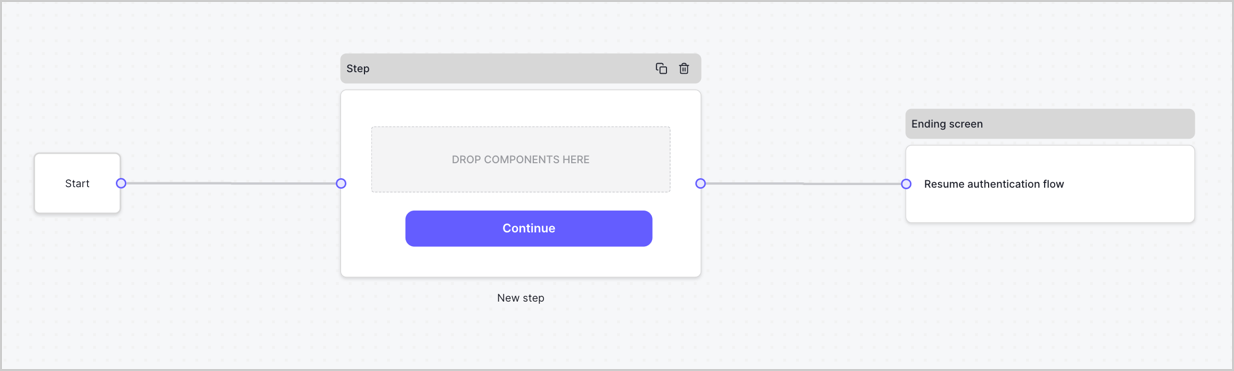
By default, a new form contains a Start node, a Step node, and an Ending screen node.
<Frame>
  <img src="https://mintcdn.com/docs-dev-feat-docs-5551-enterprise-connect/F_KuxmcPTduhDvgC/docs/images/cdy7uua7fh8z/2TZ9jSjgEcARFpULI6hz4R/a4319a1bd482f2ee5cc23100fdb2f42c/New-form-Forms-for-action-use-case.png?fit=max&auto=format&n=F_KuxmcPTduhDvgC&q=85&s=fc8565244e37878c2db745bcf0f73a21" alt="Dashboard > Forms > Use Cases > Form" data-og-width="1234" width="1234" data-og-height="371" height="371" data-path="docs/images/cdy7uua7fh8z/2TZ9jSjgEcARFpULI6hz4R/a4319a1bd482f2ee5cc23100fdb2f42c/New-form-Forms-for-action-use-case.png" data-optimize="true" data-opv="3" srcset="https://mintcdn.com/docs-dev-feat-docs-5551-enterprise-connect/F_KuxmcPTduhDvgC/docs/images/cdy7uua7fh8z/2TZ9jSjgEcARFpULI6hz4R/a4319a1bd482f2ee5cc23100fdb2f42c/New-form-Forms-for-action-use-case.png?w=280&fit=max&auto=format&n=F_KuxmcPTduhDvgC&q=85&s=e91d1eb3ba6335af262f8c52b266fe63 280w, https://mintcdn.com/docs-dev-feat-docs-5551-enterprise-connect/F_KuxmcPTduhDvgC/docs/images/cdy7uua7fh8z/2TZ9jSjgEcARFpULI6hz4R/a4319a1bd482f2ee5cc23100fdb2f42c/New-form-Forms-for-action-use-case.png?w=560&fit=max&auto=format&n=F_KuxmcPTduhDvgC&q=85&s=9737275626937657ed8f0764474ac493 560w, https://mintcdn.com/docs-dev-feat-docs-5551-enterprise-connect/F_KuxmcPTduhDvgC/docs/images/cdy7uua7fh8z/2TZ9jSjgEcARFpULI6hz4R/a4319a1bd482f2ee5cc23100fdb2f42c/New-form-Forms-for-action-use-case.png?w=840&fit=max&auto=format&n=F_KuxmcPTduhDvgC&q=85&s=0434b46194fe16d7203f90bc6af6e77c 840w, https://mintcdn.com/docs-dev-feat-docs-5551-enterprise-connect/F_KuxmcPTduhDvgC/docs/images/cdy7uua7fh8z/2TZ9jSjgEcARFpULI6hz4R/a4319a1bd482f2ee5cc23100fdb2f42c/New-form-Forms-for-action-use-case.png?w=1100&fit=max&auto=format&n=F_KuxmcPTduhDvgC&q=85&s=63bd03060fea4944fafc4dee1de2b2c8 1100w, https://mintcdn.com/docs-dev-feat-docs-5551-enterprise-connect/F_KuxmcPTduhDvgC/docs/images/cdy7uua7fh8z/2TZ9jSjgEcARFpULI6hz4R/a4319a1bd482f2ee5cc23100fdb2f42c/New-form-Forms-for-action-use-case.png?w=1650&fit=max&auto=format&n=F_KuxmcPTduhDvgC&q=85&s=50adc446e085a8e479458d0276a55c0a 1650w, https://mintcdn.com/docs-dev-feat-docs-5551-enterprise-connect/F_KuxmcPTduhDvgC/docs/images/cdy7uua7fh8z/2TZ9jSjgEcARFpULI6hz4R/a4319a1bd482f2ee5cc23100fdb2f42c/New-form-Forms-for-action-use-case.png?w=2500&fit=max&auto=format&n=F_KuxmcPTduhDvgC&q=85&s=e244e2ef1ea71131ff18f410641aab15 2500w" />
</Frame>

### Configure the Step node

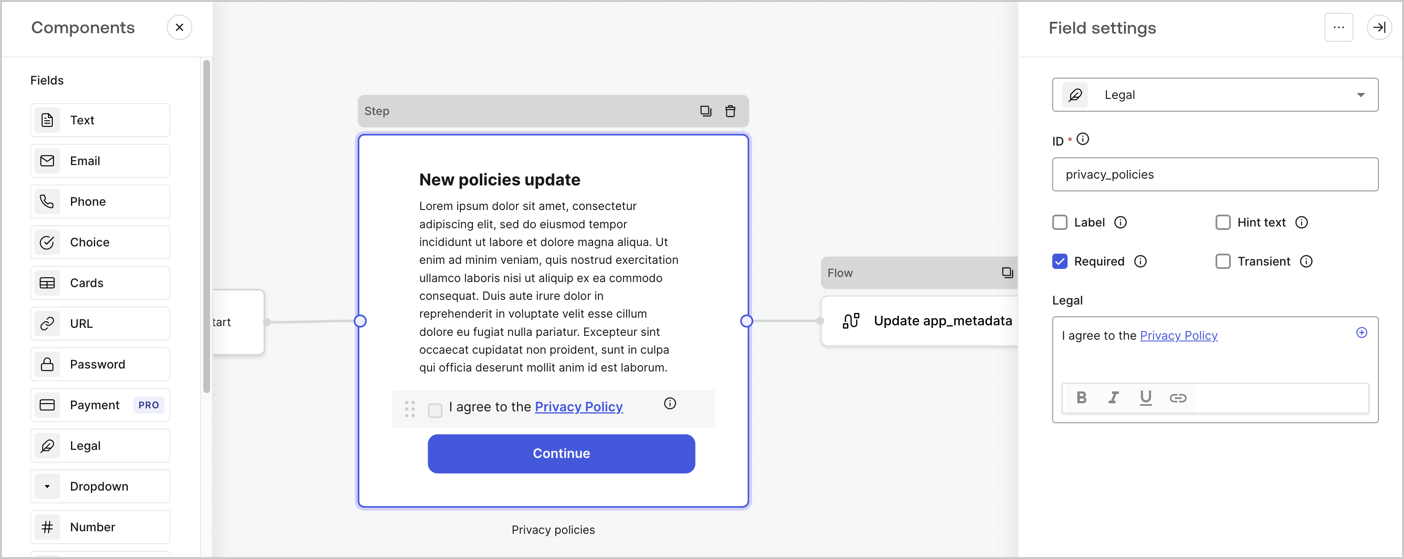
The Step node is the graphical interface visible to users. Add [Fields](/docs/customize/forms/nodes-and-components) to the Step node to collect the new agreement acceptance value by following these steps:

1. Drag a **Rich text** field from the **Components menu** into the **Step** node.

   * **Rich text**: Enter a description of your privacy policies updates.
   * Select **Save**.
2. Drag a **Legal** field into the **Step** node.

   * **ID**: Enter `privacy_policies`.
   * **Required**: Enable the checkbox.
   * **Legal**: Enter `I agree to the Privacy Policy`.
   * Select **Save**.
3. Select **Publish** to save.
<Frame>
  <img src="https://mintcdn.com/docs-dev-feat-docs-5551-enterprise-connect/KATJ0wcqYzttE2dS/docs/images/cdy7uua7fh8z/59zFFjQjAnjogkc2QGIqqJ/0ad66b1b636544122aa4e65968b76c2c/privacy-policy-step-node.png?fit=max&auto=format&n=KATJ0wcqYzttE2dS&q=85&s=9f5e49233664c429add94dced5670349" alt="Dashboard > Actions > Forms > Use case privacy policy step node" data-og-width="1404" width="1404" data-og-height="559" height="559" data-path="docs/images/cdy7uua7fh8z/59zFFjQjAnjogkc2QGIqqJ/0ad66b1b636544122aa4e65968b76c2c/privacy-policy-step-node.png" data-optimize="true" data-opv="3" srcset="https://mintcdn.com/docs-dev-feat-docs-5551-enterprise-connect/KATJ0wcqYzttE2dS/docs/images/cdy7uua7fh8z/59zFFjQjAnjogkc2QGIqqJ/0ad66b1b636544122aa4e65968b76c2c/privacy-policy-step-node.png?w=280&fit=max&auto=format&n=KATJ0wcqYzttE2dS&q=85&s=7f2e9bf4404c3ecb49313b77383ad6a3 280w, https://mintcdn.com/docs-dev-feat-docs-5551-enterprise-connect/KATJ0wcqYzttE2dS/docs/images/cdy7uua7fh8z/59zFFjQjAnjogkc2QGIqqJ/0ad66b1b636544122aa4e65968b76c2c/privacy-policy-step-node.png?w=560&fit=max&auto=format&n=KATJ0wcqYzttE2dS&q=85&s=76dbe18f59e36197709d3ef7605ec4a3 560w, https://mintcdn.com/docs-dev-feat-docs-5551-enterprise-connect/KATJ0wcqYzttE2dS/docs/images/cdy7uua7fh8z/59zFFjQjAnjogkc2QGIqqJ/0ad66b1b636544122aa4e65968b76c2c/privacy-policy-step-node.png?w=840&fit=max&auto=format&n=KATJ0wcqYzttE2dS&q=85&s=d7783c37316e0a1b942d383c2a1cbf8d 840w, https://mintcdn.com/docs-dev-feat-docs-5551-enterprise-connect/KATJ0wcqYzttE2dS/docs/images/cdy7uua7fh8z/59zFFjQjAnjogkc2QGIqqJ/0ad66b1b636544122aa4e65968b76c2c/privacy-policy-step-node.png?w=1100&fit=max&auto=format&n=KATJ0wcqYzttE2dS&q=85&s=23d959c15c58a40ba0d86f053dc27f14 1100w, https://mintcdn.com/docs-dev-feat-docs-5551-enterprise-connect/KATJ0wcqYzttE2dS/docs/images/cdy7uua7fh8z/59zFFjQjAnjogkc2QGIqqJ/0ad66b1b636544122aa4e65968b76c2c/privacy-policy-step-node.png?w=1650&fit=max&auto=format&n=KATJ0wcqYzttE2dS&q=85&s=56ff2c026e55ba0012ef05698852876f 1650w, https://mintcdn.com/docs-dev-feat-docs-5551-enterprise-connect/KATJ0wcqYzttE2dS/docs/images/cdy7uua7fh8z/59zFFjQjAnjogkc2QGIqqJ/0ad66b1b636544122aa4e65968b76c2c/privacy-policy-step-node.png?w=2500&fit=max&auto=format&n=KATJ0wcqYzttE2dS&q=85&s=d337370d302699c0c6f0867910de2c59 2500w" />
</Frame>

### Configure the Flow node

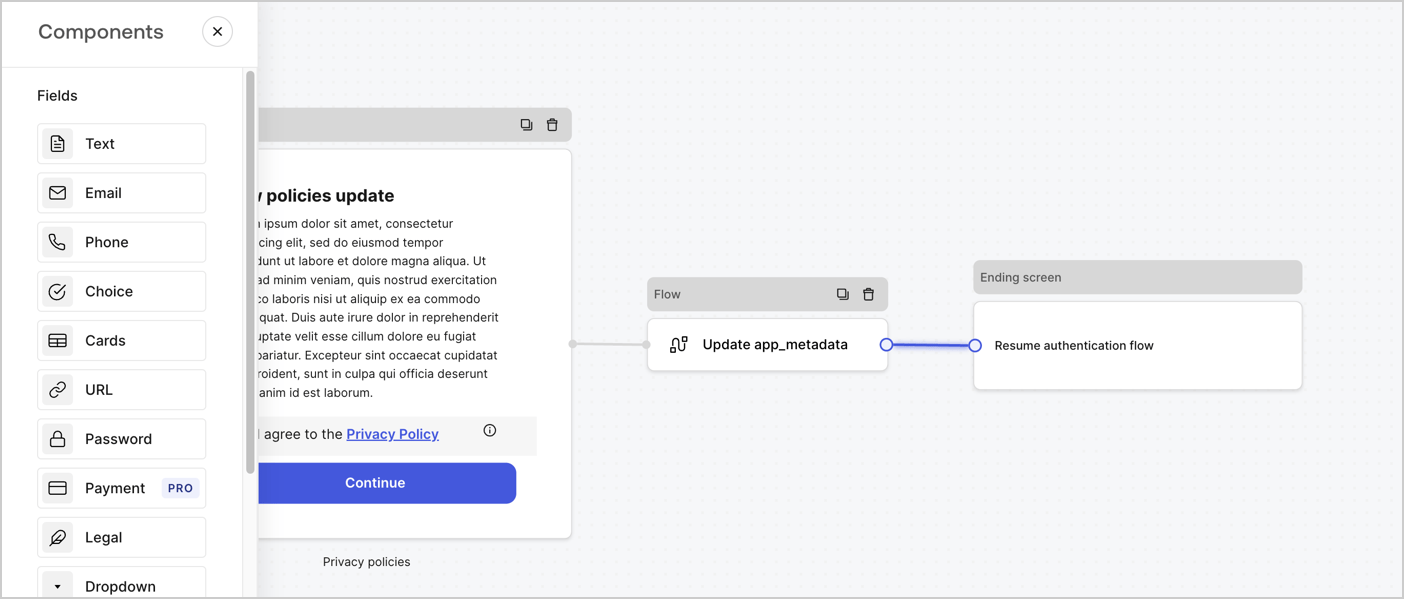
Add a **Flow** node after the **Step** node to update the `app_metadata` and resume the authentication flow by following these steps:

1. Select **Flow** from the bottom of the Form editor.
2. Remove the existing link between the **Step** and **Ending Screen** nodes.
3. Select the new **Flow** > **Click to add a flow** > **Create a new flow.**

   * Enter `Update app_metadata` in the **Name** field.
   * Select **Create**.
   * Select **Save**.
4. Link the **Flow** node to the **Step** and **Ending Screen** nodes as pictured below.
5. Select **Publish** to save.
<Frame>
  <img src="https://mintcdn.com/docs-dev-feat-docs-5551-enterprise-connect/n8I2ndiyWFrAh78u/docs/images/cdy7uua7fh8z/6YIkzm7SrpM9LW76AXuRzh/353c518fe82bbaa440836da1d83596d6/link-policies.png?fit=max&auto=format&n=n8I2ndiyWFrAh78u&q=85&s=b9c29729dee70abc016f6b49c007dbe3" alt="Dashboard > Actions > Forms > Form" data-og-width="1404" width="1404" data-og-height="599" height="599" data-path="docs/images/cdy7uua7fh8z/6YIkzm7SrpM9LW76AXuRzh/353c518fe82bbaa440836da1d83596d6/link-policies.png" data-optimize="true" data-opv="3" srcset="https://mintcdn.com/docs-dev-feat-docs-5551-enterprise-connect/n8I2ndiyWFrAh78u/docs/images/cdy7uua7fh8z/6YIkzm7SrpM9LW76AXuRzh/353c518fe82bbaa440836da1d83596d6/link-policies.png?w=280&fit=max&auto=format&n=n8I2ndiyWFrAh78u&q=85&s=e1f3abba372197129c3d18a16910f5db 280w, https://mintcdn.com/docs-dev-feat-docs-5551-enterprise-connect/n8I2ndiyWFrAh78u/docs/images/cdy7uua7fh8z/6YIkzm7SrpM9LW76AXuRzh/353c518fe82bbaa440836da1d83596d6/link-policies.png?w=560&fit=max&auto=format&n=n8I2ndiyWFrAh78u&q=85&s=36e7e523e71555ccd349f74525d0c651 560w, https://mintcdn.com/docs-dev-feat-docs-5551-enterprise-connect/n8I2ndiyWFrAh78u/docs/images/cdy7uua7fh8z/6YIkzm7SrpM9LW76AXuRzh/353c518fe82bbaa440836da1d83596d6/link-policies.png?w=840&fit=max&auto=format&n=n8I2ndiyWFrAh78u&q=85&s=841f05dbb43264ef34bc20a65394a54b 840w, https://mintcdn.com/docs-dev-feat-docs-5551-enterprise-connect/n8I2ndiyWFrAh78u/docs/images/cdy7uua7fh8z/6YIkzm7SrpM9LW76AXuRzh/353c518fe82bbaa440836da1d83596d6/link-policies.png?w=1100&fit=max&auto=format&n=n8I2ndiyWFrAh78u&q=85&s=093cbd013bbebab4bbe355a4a919bbcd 1100w, https://mintcdn.com/docs-dev-feat-docs-5551-enterprise-connect/n8I2ndiyWFrAh78u/docs/images/cdy7uua7fh8z/6YIkzm7SrpM9LW76AXuRzh/353c518fe82bbaa440836da1d83596d6/link-policies.png?w=1650&fit=max&auto=format&n=n8I2ndiyWFrAh78u&q=85&s=3882108884e56a391147c9215e7daf05 1650w, https://mintcdn.com/docs-dev-feat-docs-5551-enterprise-connect/n8I2ndiyWFrAh78u/docs/images/cdy7uua7fh8z/6YIkzm7SrpM9LW76AXuRzh/353c518fe82bbaa440836da1d83596d6/link-policies.png?w=2500&fit=max&auto=format&n=n8I2ndiyWFrAh78u&q=85&s=908ad5f651b3f65a61a47da783deeb6e 2500w" />
</Frame>

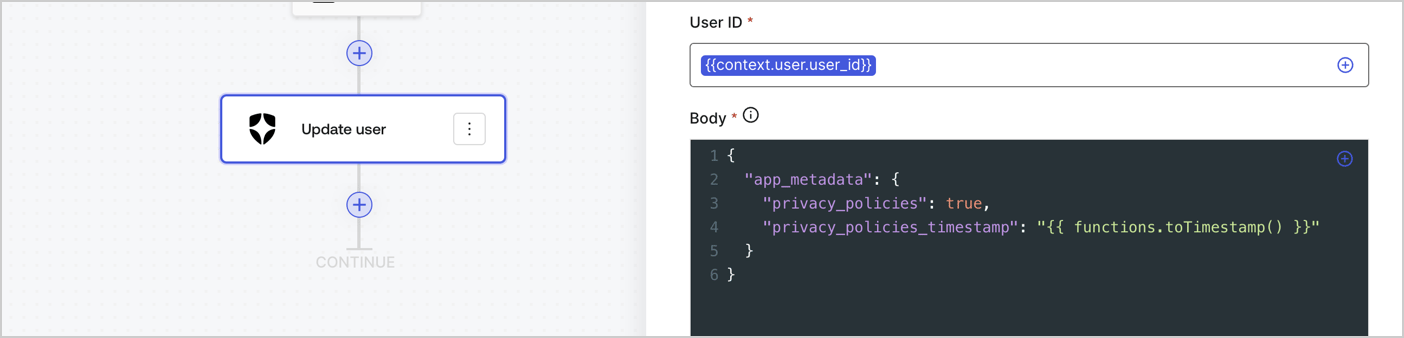
Add an Auth0 Update user action to the flow by following these steps:

1. Select the **Flow** **Update app\_metadata** > **Edit flow** to open the Flow editor in a new tab.
2. Below the StartAction, select the **+** icon to add an **Update user** action. Complete the fields below, then select **Save** to continue.

   * **Connection**: Select from the dropdown the Vault connection to your M2M application.

   * **User ID**: Enter `{{context.user.user_id}}`.

   * **Body**: Copy and paste the following code to update the app\_metadata with the privacy\_policies and privacy\_policies\_timestamp properties.

     ```text lines theme={null}
     {
       "app_metadata": {
         "privacy_policies": true,
         "privacy_policies_timestamp": "{{ functions.toTimestamp() }}"
       }
     }
     ```

   * Select **Save**.
3. Select **Publish** to save.
<Frame>
  <img src="https://mintcdn.com/docs-dev-feat-docs-5551-enterprise-connect/RAgc-JNExdmZPmCw/docs/images/cdy7uua7fh8z/CvMNIwWrOUwaFW4X3G28p/1fb70ae57a20749d9ffaaba8dc0b7e26/update-user-privacy.png?fit=max&auto=format&n=RAgc-JNExdmZPmCw&q=85&s=387ee3656b01af76040f72e2fb3af5e1" alt="Dashboard > Actions > Forms > User case privacy policy code" data-og-width="1404" width="1404" data-og-height="338" height="338" data-path="docs/images/cdy7uua7fh8z/CvMNIwWrOUwaFW4X3G28p/1fb70ae57a20749d9ffaaba8dc0b7e26/update-user-privacy.png" data-optimize="true" data-opv="3" srcset="https://mintcdn.com/docs-dev-feat-docs-5551-enterprise-connect/RAgc-JNExdmZPmCw/docs/images/cdy7uua7fh8z/CvMNIwWrOUwaFW4X3G28p/1fb70ae57a20749d9ffaaba8dc0b7e26/update-user-privacy.png?w=280&fit=max&auto=format&n=RAgc-JNExdmZPmCw&q=85&s=ebddafa4a339e24837433e964b0cbf23 280w, https://mintcdn.com/docs-dev-feat-docs-5551-enterprise-connect/RAgc-JNExdmZPmCw/docs/images/cdy7uua7fh8z/CvMNIwWrOUwaFW4X3G28p/1fb70ae57a20749d9ffaaba8dc0b7e26/update-user-privacy.png?w=560&fit=max&auto=format&n=RAgc-JNExdmZPmCw&q=85&s=efc87007cb37715b44d47ca6a5e4bd2d 560w, https://mintcdn.com/docs-dev-feat-docs-5551-enterprise-connect/RAgc-JNExdmZPmCw/docs/images/cdy7uua7fh8z/CvMNIwWrOUwaFW4X3G28p/1fb70ae57a20749d9ffaaba8dc0b7e26/update-user-privacy.png?w=840&fit=max&auto=format&n=RAgc-JNExdmZPmCw&q=85&s=8ff96b9fe0802defa690d7812dea6d79 840w, https://mintcdn.com/docs-dev-feat-docs-5551-enterprise-connect/RAgc-JNExdmZPmCw/docs/images/cdy7uua7fh8z/CvMNIwWrOUwaFW4X3G28p/1fb70ae57a20749d9ffaaba8dc0b7e26/update-user-privacy.png?w=1100&fit=max&auto=format&n=RAgc-JNExdmZPmCw&q=85&s=355be65921b118191c815b8f1030b898 1100w, https://mintcdn.com/docs-dev-feat-docs-5551-enterprise-connect/RAgc-JNExdmZPmCw/docs/images/cdy7uua7fh8z/CvMNIwWrOUwaFW4X3G28p/1fb70ae57a20749d9ffaaba8dc0b7e26/update-user-privacy.png?w=1650&fit=max&auto=format&n=RAgc-JNExdmZPmCw&q=85&s=286fa9ef8a6508650f069274f0adc0cb 1650w, https://mintcdn.com/docs-dev-feat-docs-5551-enterprise-connect/RAgc-JNExdmZPmCw/docs/images/cdy7uua7fh8z/CvMNIwWrOUwaFW4X3G28p/1fb70ae57a20749d9ffaaba8dc0b7e26/update-user-privacy.png?w=2500&fit=max&auto=format&n=RAgc-JNExdmZPmCw&q=85&s=85d78b792dc39e93ca8add800e9b73c9 2500w" />
</Frame>

<Callout icon="file-lines" color="#0EA5E9" iconType="regular">
  The flow **Update app\_metadata** adds a `privacy_policies true` value to the app`_metadata` object and also generates a timestamp with a [helper function.](/docs/customize/forms/variables)
</Callout>

## Retrieve the form render code

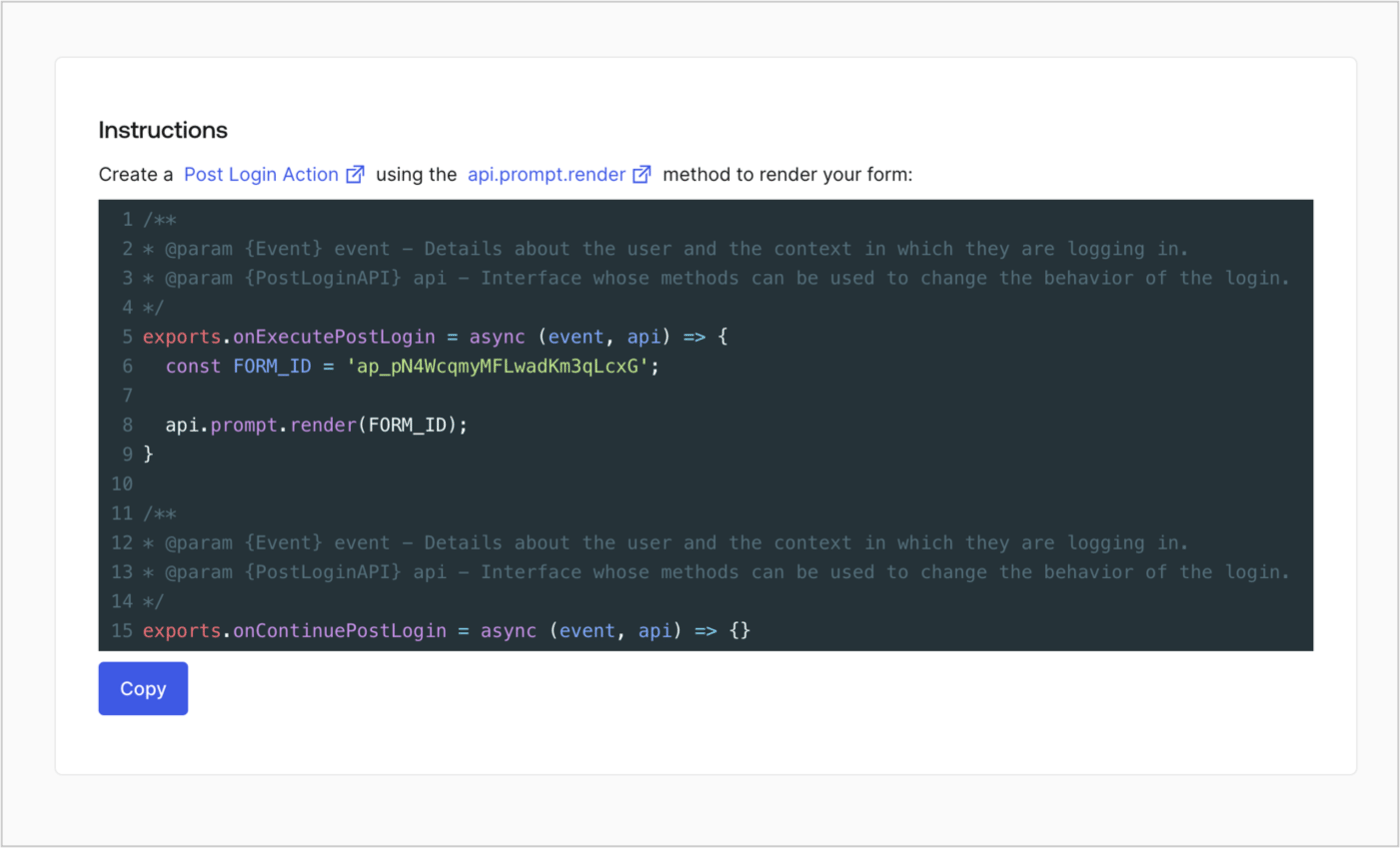
Retrieve your form render code to visually render the form with a custom Post Login Action by following these steps:

* From the Form editor, select **`<> Render`**.
* Select **Copy**.
<Frame>
  <img src="https://mintcdn.com/docs-dev-feat-docs-5551-enterprise-connect/TnSPsshfbOiggIxs/docs/images/cdy7uua7fh8z/2EIUzc539sq9lwoTKbjoJv/496a864c0fc44a782c9cadca119dbfb0/embed.png?fit=max&auto=format&n=TnSPsshfbOiggIxs&q=85&s=2d9b4cd70dd633c3ffb9765a52f07856" alt="Dashboard > Actions > Forms > Form > Embed" data-og-width="1400" width="1400" data-og-height="848" height="848" data-path="docs/images/cdy7uua7fh8z/2EIUzc539sq9lwoTKbjoJv/496a864c0fc44a782c9cadca119dbfb0/embed.png" data-optimize="true" data-opv="3" srcset="https://mintcdn.com/docs-dev-feat-docs-5551-enterprise-connect/TnSPsshfbOiggIxs/docs/images/cdy7uua7fh8z/2EIUzc539sq9lwoTKbjoJv/496a864c0fc44a782c9cadca119dbfb0/embed.png?w=280&fit=max&auto=format&n=TnSPsshfbOiggIxs&q=85&s=9184fd78e9d8b87d6322890f1b9e74d1 280w, https://mintcdn.com/docs-dev-feat-docs-5551-enterprise-connect/TnSPsshfbOiggIxs/docs/images/cdy7uua7fh8z/2EIUzc539sq9lwoTKbjoJv/496a864c0fc44a782c9cadca119dbfb0/embed.png?w=560&fit=max&auto=format&n=TnSPsshfbOiggIxs&q=85&s=3d8448cf3172e87b43e25104e5ac967a 560w, https://mintcdn.com/docs-dev-feat-docs-5551-enterprise-connect/TnSPsshfbOiggIxs/docs/images/cdy7uua7fh8z/2EIUzc539sq9lwoTKbjoJv/496a864c0fc44a782c9cadca119dbfb0/embed.png?w=840&fit=max&auto=format&n=TnSPsshfbOiggIxs&q=85&s=29bdffb13c6d3482c18328bf5772e02c 840w, https://mintcdn.com/docs-dev-feat-docs-5551-enterprise-connect/TnSPsshfbOiggIxs/docs/images/cdy7uua7fh8z/2EIUzc539sq9lwoTKbjoJv/496a864c0fc44a782c9cadca119dbfb0/embed.png?w=1100&fit=max&auto=format&n=TnSPsshfbOiggIxs&q=85&s=7f4658e97b12ec851587e68fde6522bf 1100w, https://mintcdn.com/docs-dev-feat-docs-5551-enterprise-connect/TnSPsshfbOiggIxs/docs/images/cdy7uua7fh8z/2EIUzc539sq9lwoTKbjoJv/496a864c0fc44a782c9cadca119dbfb0/embed.png?w=1650&fit=max&auto=format&n=TnSPsshfbOiggIxs&q=85&s=4b9b33c8cbd57013831c5e025ccdaa60 1650w, https://mintcdn.com/docs-dev-feat-docs-5551-enterprise-connect/TnSPsshfbOiggIxs/docs/images/cdy7uua7fh8z/2EIUzc539sq9lwoTKbjoJv/496a864c0fc44a782c9cadca119dbfb0/embed.png?w=2500&fit=max&auto=format&n=TnSPsshfbOiggIxs&q=85&s=309a3047845e113ed28b4e4be4caa92f 2500w" />
</Frame>

## Create a Post Login Action

Create a post-login Action to render your form by following these steps:

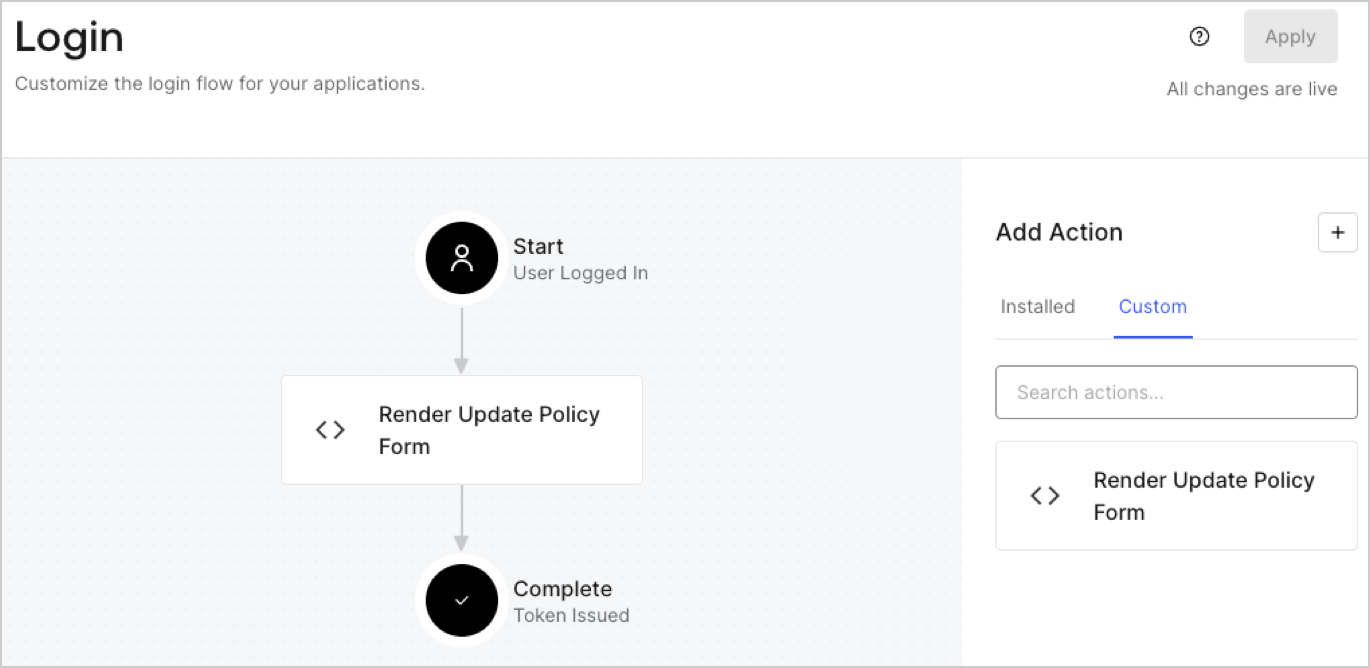
1. Navigate to **Auth0 Dashboard > Actions > Flows > Login.**
2. Select the **+** icon and Select **Build from scratch**:

   * **Name**: Enter `Render Update Policy Form`.
   * **Trigger**: Select `Login / Post Login`.
   * **Runtime**: Select the recommended version.
3. Select **Create**.

To configure the post-login Action:

1. Delete the existing code from the Code editor.
2. Paste the form render code into the Code editor.
3. Edit the code to define the conditional logic that will render the form.

   ```javascript lines theme={null}
   /**
   * @param {Event} event - Details about the user and the context in which they are logging in.
   * @param {PostLoginAPI} api - Interface whose methods can be used to change the behavior of the login.
   */
   exports.onExecutePostLogin = async (event, api) => {
     const FORM_ID = 'REPLACE_WITH_YOUR_FORM_ID';

     if (event.user.app_metadata.privacy_policies !== true) {
       api.prompt.render(FORM_ID);
     }
   }

   exports.onContinuePostLogin = async (event, api) => { }
   ```

   <Callout icon="file-lines" color="#0EA5E9" iconType="regular">
     The example code above will render the form when a user is missing the app metadata `privacy_policies` property.
   </Callout>
4. Select **Deploy.**
5. Drag and Drop the **Render Update Policy Form** Action to the **Login** flow.
   <Frame>
     <img src="https://mintcdn.com/docs-dev-feat-docs-5551-enterprise-connect/4o2RdRtlv6vvrz-4/docs/images/cdy7uua7fh8z/5TOwDgevZsBqd7yZynUYWU/41ca909dc3007aed4f40ff794a05efa5/postlogin.png?fit=max&auto=format&n=4o2RdRtlv6vvrz-4&q=85&s=7e3da8ad332cd3cb30ae9516d0d1ca57" alt="Dashboard > Forms > Use Case > Render update policy form login action" data-og-width="1370" width="1370" data-og-height="668" height="668" data-path="docs/images/cdy7uua7fh8z/5TOwDgevZsBqd7yZynUYWU/41ca909dc3007aed4f40ff794a05efa5/postlogin.png" data-optimize="true" data-opv="3" srcset="https://mintcdn.com/docs-dev-feat-docs-5551-enterprise-connect/4o2RdRtlv6vvrz-4/docs/images/cdy7uua7fh8z/5TOwDgevZsBqd7yZynUYWU/41ca909dc3007aed4f40ff794a05efa5/postlogin.png?w=280&fit=max&auto=format&n=4o2RdRtlv6vvrz-4&q=85&s=959f9ea59ac7fcb22407ead09042256a 280w, https://mintcdn.com/docs-dev-feat-docs-5551-enterprise-connect/4o2RdRtlv6vvrz-4/docs/images/cdy7uua7fh8z/5TOwDgevZsBqd7yZynUYWU/41ca909dc3007aed4f40ff794a05efa5/postlogin.png?w=560&fit=max&auto=format&n=4o2RdRtlv6vvrz-4&q=85&s=d8b26a336de984e901cc82b110f1743c 560w, https://mintcdn.com/docs-dev-feat-docs-5551-enterprise-connect/4o2RdRtlv6vvrz-4/docs/images/cdy7uua7fh8z/5TOwDgevZsBqd7yZynUYWU/41ca909dc3007aed4f40ff794a05efa5/postlogin.png?w=840&fit=max&auto=format&n=4o2RdRtlv6vvrz-4&q=85&s=1a14bac34890739bc64efa95af2a1289 840w, https://mintcdn.com/docs-dev-feat-docs-5551-enterprise-connect/4o2RdRtlv6vvrz-4/docs/images/cdy7uua7fh8z/5TOwDgevZsBqd7yZynUYWU/41ca909dc3007aed4f40ff794a05efa5/postlogin.png?w=1100&fit=max&auto=format&n=4o2RdRtlv6vvrz-4&q=85&s=c01e6f02fa7f1f9f4f0f0be8d51f7757 1100w, https://mintcdn.com/docs-dev-feat-docs-5551-enterprise-connect/4o2RdRtlv6vvrz-4/docs/images/cdy7uua7fh8z/5TOwDgevZsBqd7yZynUYWU/41ca909dc3007aed4f40ff794a05efa5/postlogin.png?w=1650&fit=max&auto=format&n=4o2RdRtlv6vvrz-4&q=85&s=d4c323d4cc3ce56ebae74f29568bd6ba 1650w, https://mintcdn.com/docs-dev-feat-docs-5551-enterprise-connect/4o2RdRtlv6vvrz-4/docs/images/cdy7uua7fh8z/5TOwDgevZsBqd7yZynUYWU/41ca909dc3007aed4f40ff794a05efa5/postlogin.png?w=2500&fit=max&auto=format&n=4o2RdRtlv6vvrz-4&q=85&s=0002e31c75261dbc47ac93f9eb1073cb 2500w" />
   </Frame>
6. Select **Apply.**

### Test implementation

Test the implementation by following these steps:

1. Log in with an existing user whose app`_metadata` attribute `privacy_policies` does not have a value.
2. The post-login Action in the Login flow will render the form and prompt for acceptance.
3. Select **Auth0 Dashboard > User Management > Users,** locate the user and verify that the `app_metadata` attribute `privacy_policies` contains a `true` value and a timestamp.
